Reinstall and re-register command for built-in Windows 10 apps
Credit : winhelponline
Reinstall and re-register command for built-in Windows 10 apps
powershell -ExecutionPolicy Unrestricted Add-AppxPackage -DisableDevelopmentMode -Register $Env:SystemRoot\ImmersiveControlPanel\AppxManifest.xml
If you receive an error
- Add-AppxPackage : Cannot find path 'C:\AppXManifest.xml' because it does not exist.
- At line:1 char:61
- + ...  | Foreach {Add-AppxPackage -DisableDevelopmentMode -Register "$($_.I ...
- +                 ~~~~~~~~~~~~~~~~~~~~~~~~~~~~~~~~~~~~~~~~~~~~~~~~~~~~~~~~~
-     + CategoryInfo          : ObjectNotFound: (C:\AppXManifest.xml:String) [Add-AppxPackage], ItemNotFoundException
-     + FullyQualifiedErrorId : PathNotFound,Microsoft.Windows.Appx.PackageManager.Commands.AddAppxPackageCommand
The above errors if the Microsoft Store package folder is missing (or incomplete) from the C:\Program Files\WindowsApps folder. You’ll need to download the Microsoft Store appx bundle/package from Microsoft and install it in those cases. The instructions are given below.
Download the Microsoft Store installer (Appx package)
You can download the Microsoft Store app and its dependencies in the form of .Appx and .AppxBundle package or installers from Microsoft’s servers. Follow these steps to do so:
- Visit the following website
The above third-party site can generate download links (to app installers) for the chosen app. These are direct download links pointing at the official Microsoft servers.
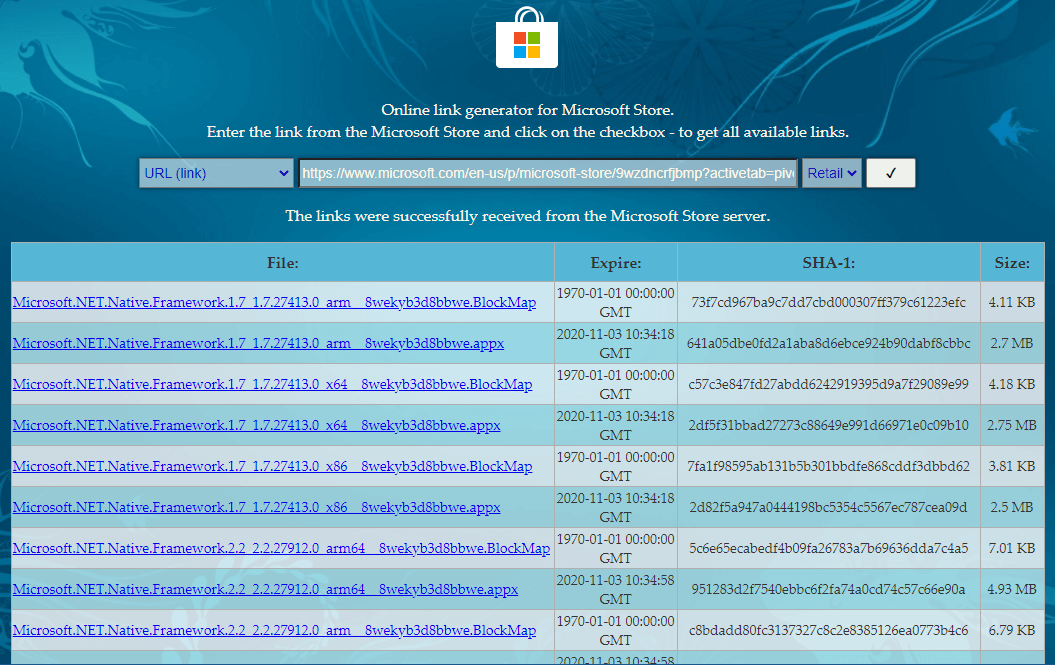
- On the above page, paste the following link in the URL text box. The following is the Microsoft Store app’s official link.
https://www.microsoft.com/en-us/p/microsoft-store/9wzdncrfjbmp
- Select Retail (or the appropriate branch accordingly), and click the generate button.
-
As the Microsoft Store app depends on .NET Framework, .NET Runtime, and VC Libs, download the latest packages of each item listed. Be sure to download the correct ones matching the bitness (x86 vs. x64) of your Windows 10.
-
Now, you would have downloaded these four Appx packages — the version numbers will vary according to the build/version of the Microsoft Store app.
Microsoft.NET.Native.Framework.2.2_2.2.27912.0_x64__8wekyb3d8bbwe.Appx

Microsoft.NET.Native.Runtime.2.2_2.2.28604.0_x64__8wekyb3d8bbwe.Appx

Microsoft.VCLibs.140.00_14.0.29231.0_x64__8wekyb3d8bbwe.Appx

Microsoft.WindowsStore_12010.1001.313.0_neutral___8wekyb3d8bbwe.AppxBundle
- Run each .appx installers first, as they’re the dependencies of Microsoft Store. Alternatively, you can use PowerShell to install each package. The PowerShell command-line syntax is below:
Add-AppxPackage -Path "C:\Path\filename.Appx"
-
If you get the error Deployment failed with HRESULT: 0x80073D02, skip the package. It’s most likely because the package or dependency is already installed and currently in use by some other app.
-
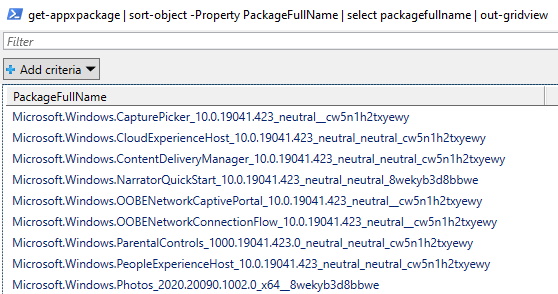
Also, you can run the following command to check if an app package is already installed or not:
get-appxpackage | sort-object -Property PackageFullName | select packagefullname | out-gridview
If the package (of the same version) is already installed, you don’t have to install it again.
Getting the error 0x80073D05?
Open the C:\Users(Your Username)\AppData\Local\Packages folder and try renaming the folder related to the app (e.g., Microsoft.VCLibs.140.00_8wekyb3d8bbwe) you’re trying to install. If Windows doesn’t let you delete the folder, try moving it to another folder or drive. Or, you may use other methods to delete the stubborn folder.
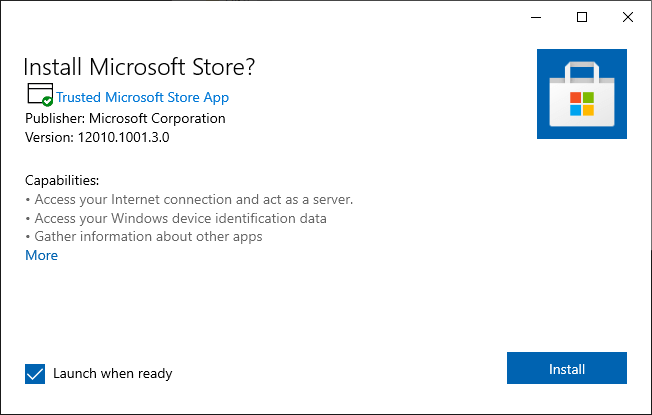
- Finally, run the Windows Store .appxbundle file and complete the process
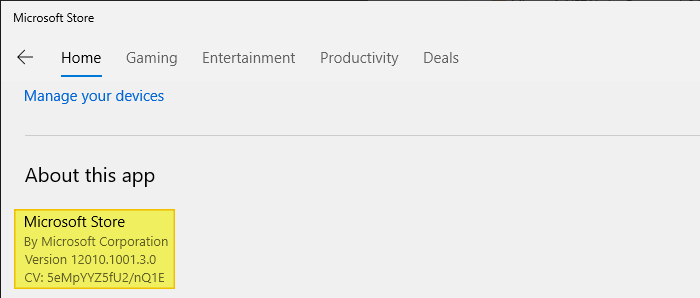
- That’s it. The Microsoft Store app is now reinstated. Open Microsoft Store → Settings to check its version.
- Verify the Microsoft Store app info, open the PowerShell (administrator) window and run the following command:
Get-AppxPackage -allusers Microsoft.WindowsStore
Name                   : Microsoft.WindowsStore
Publisher              : CN=Microsoft Corporation, O=Microsoft Corporation, L=Redmond, S=Washington, C=US
Architecture           : X64
ResourceId             :
Version                : 12010.1001.3.0
PackageFullName        : Microsoft.WindowsStore_12010.1001.3.0_x64__8wekyb3d8bbwe
InstallLocation        : C:\Program Files\WindowsApps\Microsoft.WindowsStore_12010.1001.3.0_x64__8wekyb3d8bbwe
IsFramework            : False
PackageFamilyName      : Microsoft.WindowsStore_8wekyb3d8bbwe
PublisherId            : 8wekyb3d8bbwe
PackageUserInformation : {S-1-5-21-460002293-3200999940-3601599048-1002 [shelltest]: Staged,
                         S-1-5-21-460002293-3200999940-3601599048-500 [Administrator]: Installed,
                         S-1-5-21-460002293-3200999940-3601599048-1001 [Ramesh Srinivasan]: Installed}
IsResourcePackage      : False
IsBundle               : False
IsDevelopmentMode      : False
NonRemovable           : False
Dependencies           : {Microsoft.NET.Native.Framework.2.2_2.2.27912.0_x64__8wekyb3d8bbwe,
                         Microsoft.NET.Native.Runtime.2.2_2.2.28604.0_x64__8wekyb3d8bbwe,
                         Microsoft.VCLibs.140.00_14.0.29231.0_x64__8wekyb3d8bbwe,
                         Microsoft.WindowsStore_12010.1001.3.0_neutral_split.scale-100_8wekyb3d8bbwe}
IsPartiallyStaged      : False
SignatureKind          : Store
Status                 : Ok
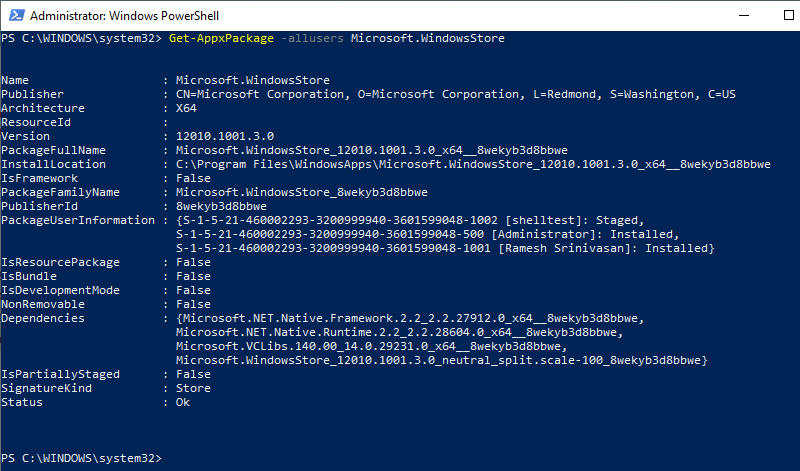
You’ll see that the Microsoft Store app is fully installed along with its dependencies.
Example to install microsoft windows calculator
get-appxpackage *calculator*
running the above command shows the result as folllows

then go to below website on one internet connected computer and enter like “Microsoft.WindowsCalculator_8wekyb3d8bbwe” in box then we can find calculator and right click “open in new tab” to download Calculator .appxbundle file. Finally, we can copy this Calculator .appxbundle file to target computer and install it.
https://store.rg-adguard.net/
